Tokens
A token is a customizable formula that can be used to display a statistic, an expression, or an annotation in a text box.
Create a Token
Statistics
Statistic tokens display a statistic, or an array of statistics, from one or more files. The population and file choice can be static, or determined dynamically.
Howto
- Click on the Create and edit token button (
 ) in the toolbar. A dialog will open.
 - In the dialog, click the plus next to Token, and name the token.
- Under the Statistic dropdown, choose a statistic.
- Under FCS Files, choose the FCS files that should be used, or Specify in the component to allow the text box options to determine the file(s). If you select multiple files, the results will be an array, with one value per file.
- Under Population, choose the population to calculate statistics for or Specify in the component to allow the text box options to determine the population.
- If the token uses a channel statistic, choose the channel or Specify in the component for text box options to determine the channel.
- When finished creating tokens, click on Save tokens.
Annotations
Annotation tokens will display the value of an annotation for one or more files.
Howto
- Click on the Create and edit token button () in the toolbar. A dialog will open.
- Click the plus next to Token, and name the token.
- In the dialog, for Kind, choose Annotation.
- Choose the annotation for the token from the Annotation dropdown.
- Select the file(s) to use, or select Specify in the component to determine the file in the text box options.
- When finished creating tokens, click on Save tokens.
Expressions
Expressions combine functions and other named tokens together. They are written using standard syntax for Office Open XML, which mean that the same syntax for writing expressions in most spreadsheet software will work for expression tokens.
Available token expressions include:
| Expression | Description |
|---|---|
| ISNA | Returns TRUE if the evaluated condition is N/A |
| AND | Returns TRUE if all conditions evaluated are met |
| IF | Evaluates a condition, and returns two values depending on whether the condition is true or false |
| IFS | Tests a series of conditions, and returns the value of the first condition that is true |
| NOT | Returns true if the condition evaluated is false |
| OR | Returns true if any of the evaluated conditions are true |
| ASINH | Inverse hyperbolic sine |
| LOG10 | Calculates the base-10 logarithm |
| POWER | Raises a number to a power, equivalent of using the ^ operator |
| ROUND | Rounds a number to a specified number of digits |
| SINH | Hyperbolic sine |
| SQRT | Square root |
| SUM | Addition |
| AVERAGE | Mean |
| MAX | Maximum value |
| MIN | Minimum value |
| PERCENTILE.INC | Returns the value at the nth percentile of values, inclusive |
| QUARTILE.INC | Returns the value at the nth quartile of values, inclusive |
| STDEV | Standard deviation |
| STDEV.S | Standard deviation, calculated based on a sample; functionally identical to STDEV |
| CONCATENATE | Combines together text strings into one |
| EXACT | Compares two numbers or text strings and returns TRUE if they are identical |
| LEFT | Returns a specific number of characters from a text string, beginning at the left end of the string |
| RIGHT | Returns a specific number of characters from a text string, beginning at the right end of the string |
| MID | Returns a specific number of characters from a text string, starting from a specified number of characters into the string |
| LEN | Returns the number of characters in a text string |
| SEARCH | Tries to find a text string in another, and returns its position when found |
| REPLACE | Replaces part of a text string with different text; uses a specified position to determine where to begin replacement |
| SUBSTITUTE | Replaces part of a text string with different text; can replace text anywhere in the string |
| TEXTSPLIT | Splits a text string into multiple parts, based on a splitter character, like a dash or space |
| TRIM | Removes any spaces from the beginning or end of text, and removes adjacent spaces from the middle of strings |
- See also: Office Open XML Standards at https://ecma-international.org/publications-and-standards/standards/ecma-376/
To create an expression token:
Howto
- Click on the Create and edit token button () in the toolbar. A dialog will open.
- In the dialog, for Kind, choose Expression.
- Click the plus next to Token, and name the token.
- Write an expression by combining functions and tokens. For convenience, available variables can be accessed from the dropdowns above the expression:
- Add functions by clicking on
 and choosing from the dropdown options.
 - Add tokens by clicking on
 and choosing from the dropdown options.
- Add functions by clicking on
- When finished creating tokens, click on Save tokens.
Insert Tokens
To insert a token into a text box:
Howto
- Select an existing text box, or insert a new one by clicking the
 button from the toolbar and placing the text box in the illustration.
 - Click on the
 dropdown in the toolbar. (This button is on the far right of the toolbar; depending on your browser window size, you may need to click
  before you can see it.)
 - Choose the token's name from the dropdown.
If the token uses Specify in the component, then the text box options will determine that variable. Like other illustration components, those options are available in the right sidebar when the text box is selected.
Tip
Batching can be used in text boxes to automatically change the component variables. Use populations, FCS files, or annotations as page variables, and then check batch next to the appropriate variable(s) in the text box options.
Examples
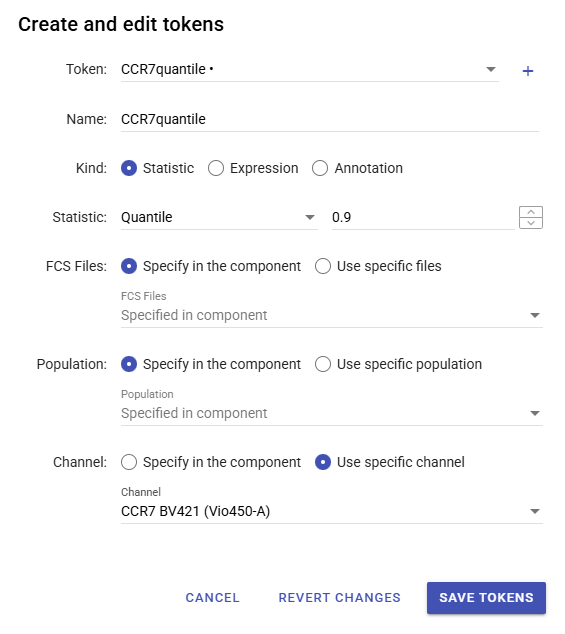
Dynamic quantile calculations
This token reports the 90th percentile of CCR7. The token dialog setup determined the statistic and channel, but used Specify in the component for the files and population:
Calculate CD4:CD8 Ratio
To calculate the ratio of CD4 to CD8 populations, first create two statistic tokens with the following settings:
- Statistic ⮞ Event Count
- FCS Files ⮞ Specify in the component
- Population ⮞ Choose CD4 for one token (“CD4count”) and CD8 for the other (“CD8count”)
Then create an expression token using the token names. In this case, the ratio can be calculated with the expression CD4count/CD8count.